
Prevent RDP access and allow HTTP on the Gateway Server
There are 2 ways to access the Gateway Server: HTML5 / HTML RDP Session (via the Gateway IP/DNS – Port number) How to LOCK DOWN HTML/HTML5 We can use mstsc with a PORT number and RDP into a TSplus Application / Gateway Server. However, if we use these advanced Security tools located the TSplus Admin Console on the Gateway Server, by…
There are 2 ways to access the Gateway Server:
-
HTML5 / HTML
-
RDP Session (via the Gateway IP/DNS – Port number)
How to LOCK DOWN HTML/HTML5
We can use mstsc with a PORT number and RDP into a TSplus Application / Gateway Server.
However, if we use these advanced Security tools located the TSplus Admin Console on the Gateway Server, by going on the Security tile/tab, then clicking on the Advanced Security options tile…:
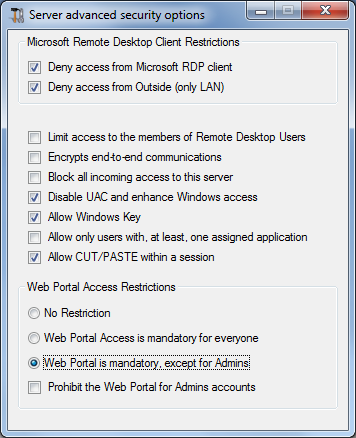
…the access is denied when trying to connect with RDP. To avoid this behavior, on the Gateway Server, you will have to do the following:
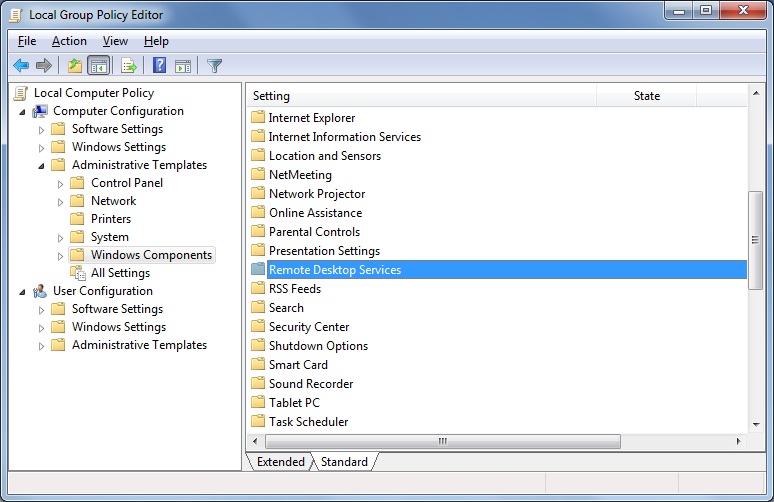
- Go to Gpedit.msc, then under Computer Configuration, click on the Administrative Templates folder, on the Windows Components folder and on Remote Desktop Services:
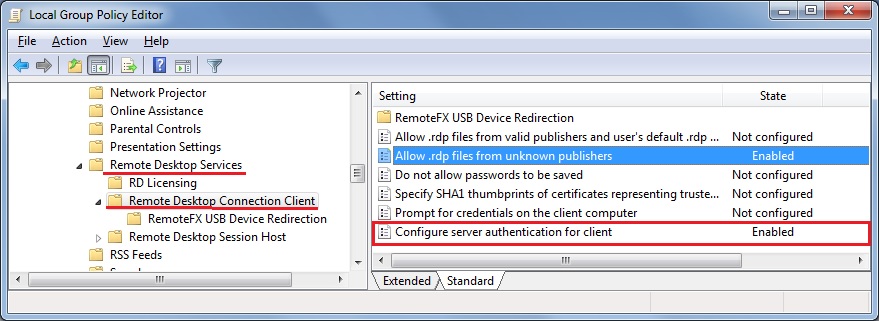
- Then, click on the Remote Desktop Connection Client folder, double-click on the “Allow .rdp files from unknown publishers” setting and enable it, as well as the “Configure server authentication for client”:
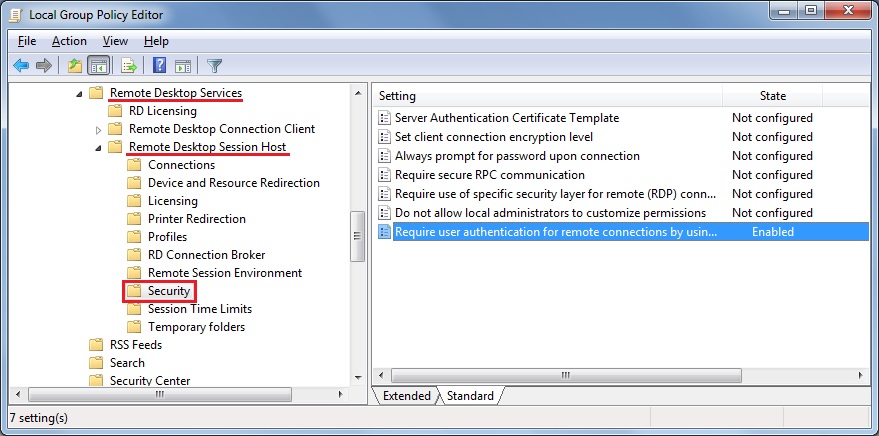
- Under the Remote Desktop Client menu, click on the Remote Desktop Session Host folder, then on the Security folder. Enable the “Require user authentication for remote connections by using Network Level Authentication” setting.
Need help with this topic?
The TSplus Türkiye team can help you validate the configuration before production rollout.