
Schedule Report Emailing
First select a report (website or server) by clicking a Server tile, then by choosing a report type in the left menu. Click on the Schedule emailing button: A new form will appear: Just fill in the following fields: The output file type (PDF, Excel or HTML). The date of the first export. The export frequency (every hour / 4 hours / 8…
First select a report (website or server) by clicking a Server tile, then by choosing a report type in the left menu.
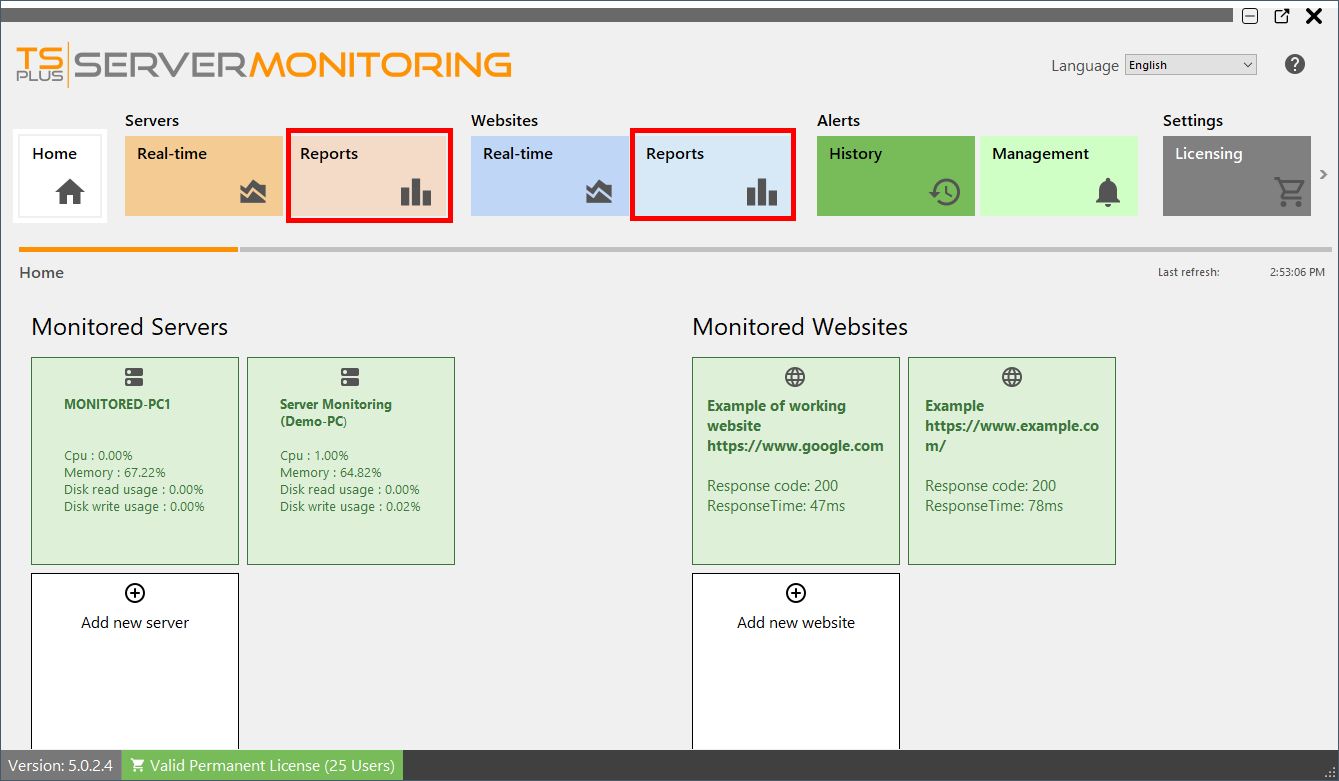
Click on the Schedule emailing button:
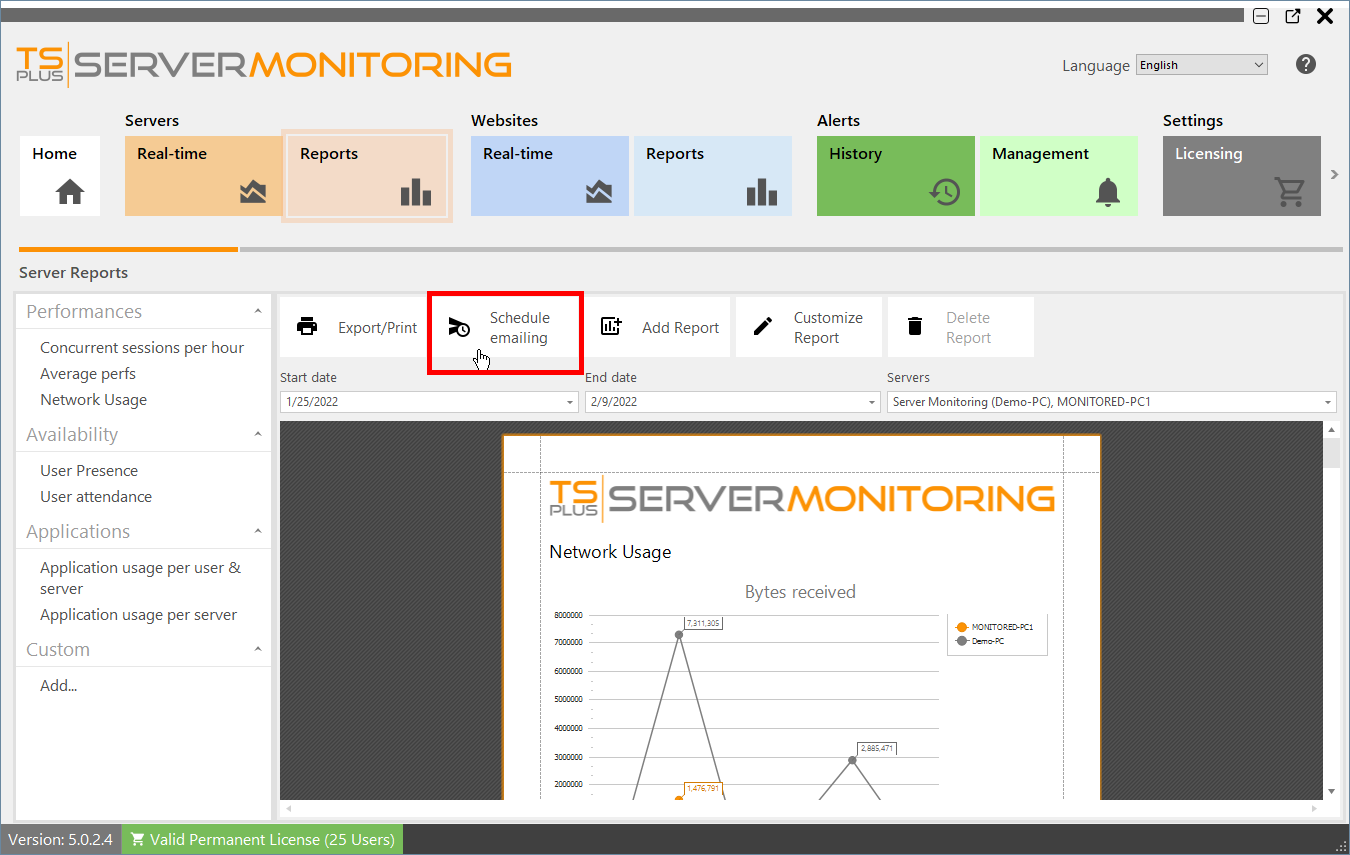
A new form will appear:
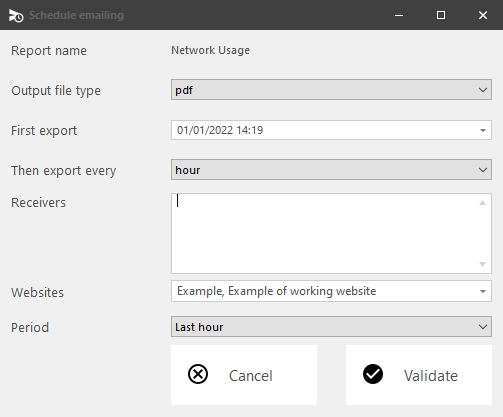
Just fill in the following fields:
- The output file type (PDF, Excel or HTML).
- The date of the first export.
- The export frequency (every hour / 4 hours / 8 hours / 12 hours / day / week / month).
- The email address(es) to send the report to. Please separate several email addresses with a comma.
- The server(s)/website(s) concerned by the report.
- The period of time for the report (last hour / last 4 hours / last 8 hours / last 12 hours / today / yesterday / last 7 days / last 30 days / last 90 days / last 180 days).
Click Validate to save the schedule.
To edit the schedule, click again on the Schedule emailing button.
The Server Report & Schedule emailing features are decoupled : The filter criteria defined on the report page apply only to the export and not to the scheduled email delivery.
Need help with this topic?
The TSplus Türkiye team can help you validate the configuration before production rollout.